Droid Cam Link: Remote Monitor
- 0.0
- Rating
- 10.00K
- Installs
- Free
- Price
 Analysis by App-foxy
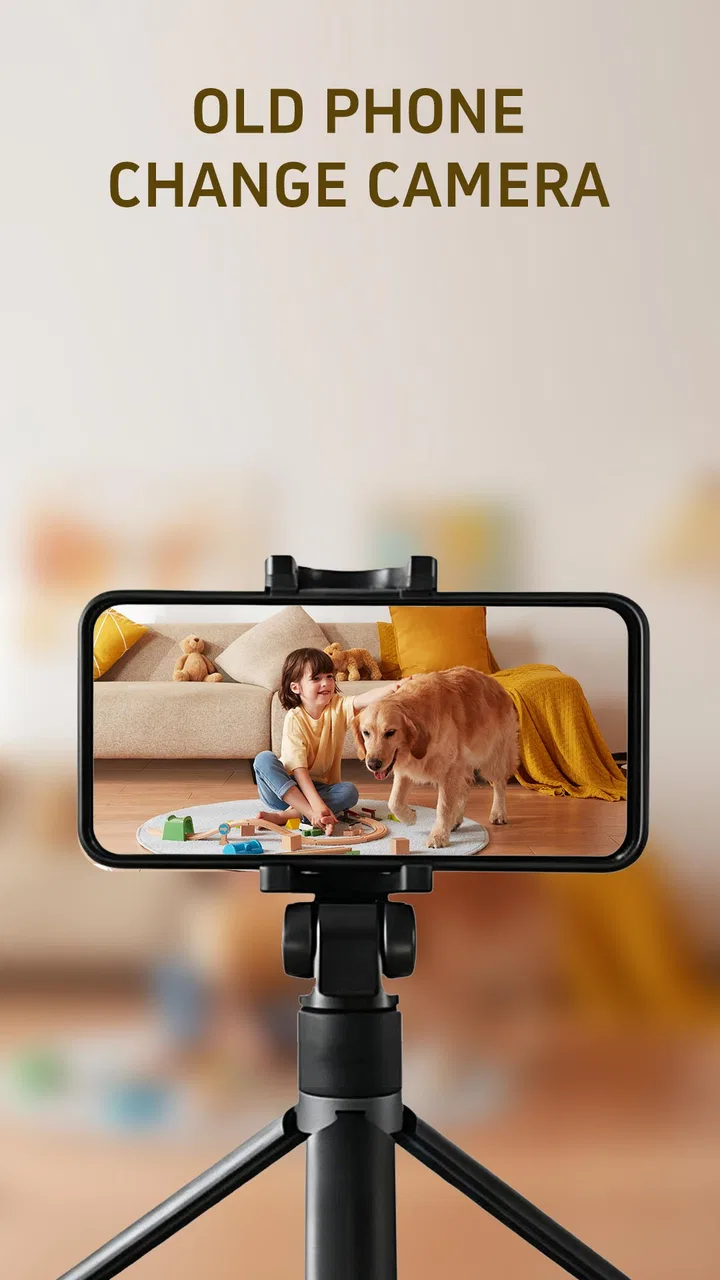
I tested Droid Cam Link: Remote Monitor as a simple way to give an older phone a second life around the home. Its basic idea is easy to understand: one phone becomes a camera, while another device can be used to view what that camera sees. That makes it interesting for checking a sleeping child, watching a pet for a short while, keeping an eye on a doorway, or seeing whether something is happening in another room without buying a dedicated camera immediately.
What I like most is that the app starts from hardware many people already own. Instead of treating an unused phone as electronic clutter, it turns that device into a practical home-monitoring tool. The experience is not identical to using a purpose-built security camera, though, and that distinction matters. This is best approached as a flexible, low-cost camera link rather than a complete replacement for a professionally installed system.
Droid Cam Link is a free House & Home app from Hefei OneSevenRead Technology Co., Ltd. It is rated for Everyone, supports Android 7.0 and later, and its current version is 1.3.0. The app has passed the ten-thousand-install mark and includes optional purchases priced from $1.99 to $29.99 per item. Those details make it accessible to experiment with, but I would still spend time testing the complete setup before relying on it for anything important.
You May Also Like

 AccuWeather: Weather Radar
AccuWeather Review: A Quick, Clear Forecast for Everyday Decisions
For everyday plans, the best forecast is the one you can understand quickly. AccuWeather makes rain timing, radar, and local conditions easy to act on, with a few trade-offs.

 Hill Climb Racing
Why Hill Climb Racing Still Turns Crashes Into One More Run
A tiny car, a bumpy hill and one more upgrade: Hill Climb Racing keeps resurfacing because its simple chaos makes every near-miss feel personal.

 AliExpress - Shopping App
AliExpress Makes Global Shopping Feel Personal, but Shoppers Bear the Risk
AliExpress turns a global marketplace into a pocket-sized discovery engine. Its reach is useful, its shopping loop compelling, and its trade-offs easy to miss.

 Lords Mobile: Kingdom Wars
Lords Mobile Is a Kingdom-Building Routine, Not a Quick Match
A case-by-case verdict on the building, battles, device demands, and social commitments that make Lords Mobile rewarding for some players and exhausting for others.

 PDF Scanner app - TapScanner
TapScanner Makes Paperwork Easier to Capture, Check, and Share
TapScanner makes scanning with a phone feel less like a rescue operation and more like a dependable step in getting work done. Its capture tools are useful, though not flawless.

 Block Blast!
 Shows How Much a Puzzle Game Can Leave Out
A quiet grid game shows why puzzle players increasingly value instant clarity, repeatable skill and low-pressure play—and where the genre still needs to catch up.
More From Our News Desk
View All News


Building a dependable everyday camera setup
I find a dependable everyday setup starts with separating what the camera phone must do from what the viewing device needs to do. A fixed stand, a known power spot, and a quick view from the place you’ll actually check in can prevent small interruptions from becoming a routine nuisance. I’d also decide in advance how often the arrangement needs testing, which leads to the practical question of how to recover smoothly when the connection or placement changes.
The baseline workflow is refreshingly straightforward
My preferred starting point was to choose an older phone with a usable rear camera, charge it fully, and place it where the view was useful rather than simply pointing it at the largest open area. A shelf facing a doorway, a table aimed toward a pet bed, or a high position covering a child’s play area generally makes more sense than leaving the phone flat on a surface.
The first practical lesson is to treat the old phone as a fixed appliance. Remove unnecessary distractions, keep it connected to power when appropriate, and make sure the camera lens is clean. A surprisingly large amount of apparent image quality comes from placement and lighting rather than from the app itself. A phone aimed toward a bright window can produce a less useful view than a modest camera pointed into a well-lit room.
I also recommend creating a repeatable pairing routine. Open the camera side, confirm that the phone is showing the intended room, then open the viewing side and check the connection before walking away. This takes only a moment, but it avoids the common mistake of assuming that a phone left in position is automatically ready to monitor.
For a temporary use case, such as checking a delivery area while working upstairs, this workflow is enough. For daily use, I would mark the phone’s position with a small piece of removable tape or place it in a stand that cannot be nudged easily. Small changes in angle are easy to miss when the device is left unattended, and a camera that has shifted toward a wall is not useful no matter how good the connection is.
Choose the right job before choosing the location
This app suits observation tasks where I want a live view more than a complete security record. It can be handy when I am cooking and want to check on a baby in another room, when I need to watch a pet during a short absence, or when I want a quick view of a room while moving between floors. In these situations, the value comes from reusing a phone and setting things up quickly.
I would be more cautious about using it as the only protection for valuable property. A spare phone depends on its battery, charging cable, physical stability, network conditions, and continued operation of the app. A dedicated indoor camera usually offers a more purpose-built mounting design and a more predictable long-term routine. If missing an event would have serious consequences, redundancy is more sensible than trusting one old handset.
Privacy also deserves practical attention. I would never point the camera toward a private area where other people could reasonably expect not to be recorded, and I would tell household members when the monitor is active. The fact that a phone is old does not make its camera less sensitive from a privacy standpoint.
What the free starting point really means
The free entry point makes experimentation easy. I could test whether an unused phone had a suitable camera angle, whether the room had enough light, and whether the viewing arrangement fit my routine without committing to new hardware first. That is the strongest reason to try it: the cost of discovery is low.
Optional purchases are available inside the app, ranging from $1.99 to $29.99 for an item. I would not buy anything immediately. First, I would use the basic workflow over several ordinary days and write down the exact limitation I am trying to solve. If an optional feature does not address a real problem in my setup, it is not automatically good value simply because it is available.
That approach is especially important with repurposed phones. The camera may be adequate for a room view but unsuitable for a dark hallway. The battery may be tired, the charging port may be loose, or the phone may become warm when left active. These are hardware constraints, not problems that an in-app purchase can necessarily fix.
Settings worth checking before leaving the room
I would begin with the camera orientation and the viewing position. A portrait arrangement can be useful for a narrow doorway or a standing person, while a landscape arrangement generally covers a wider room. I would test both physically rather than assuming the wider-looking preview gives the best practical coverage.
Next, I would check whether the image remains understandable at the distance I actually need. “HD” sounds reassuring, but clarity depends on the old phone’s camera, the room’s lighting, the display used for viewing, and the connection between devices. I would place an object where a person or pet would normally be and view it from the location where I expect to monitor. That simple test is more useful than judging the preview while standing beside the camera phone.
Sound is another setting to treat carefully. If the purpose is to hear a baby or a pet, I would test the microphone with normal household noise rather than silence. Fans, televisions, traffic, and kitchen appliances can change how useful an audio feed feels. I would also avoid placing the phone directly beside a speaker, since feedback can make the arrangement unpleasant and may encourage me to turn the volume down when I actually need it.
Screen and power behavior deserve a place in the setup routine. An old phone that dims, locks, or stops behaving as expected can interrupt the camera role. I would test the device for a longer period before depending on it, keep the charging connection secure, and avoid covering the phone in a way that traps heat. A stable stand and sensible ventilation are more valuable than squeezing the device into a hidden corner.
Small placement decisions make a large difference
Experienced use is less about constantly changing options and more about removing avoidable failure points. I prefer placing the camera phone slightly above eye level, angled down toward the area of interest. That position often gives a more useful view of a floor space or doorway and makes it harder for a pet or child to knock the device over.
For a pet-monitoring routine, I would aim at the bed, food area, and the route between them rather than the entire room. For a doorway, I would avoid pointing directly at a bright exterior and instead use an angle that keeps faces and movement inside the room visible. For a child’s room, I would keep the camera far enough away that the phone and cable cannot become reachable objects.
These choices also help with repeatability. If I need to move the phone every evening, I am more likely to skip the check later. A fixed stand, a known power outlet, and a clearly defined viewing position turn the app from a novelty into a routine tool.
Faster patterns for people who use it repeatedly
After the first few sessions, I would simplify the process into a short checklist: power, lens, angle, camera screen, viewer connection, and sound. The order matters less than using the same order every time. This is particularly useful when I am rushing out or checking the room from a different floor.
I would also keep the two devices conceptually separate. The camera phone should have one job, while the viewing phone should remain available for normal use when possible. Mixing roles can lead to accidental interruptions, especially when the viewing device receives calls or notifications. A spare tablet or secondary handset can be more comfortable for longer monitoring because it leaves my primary phone free.
Another useful habit is to test the setup after any change in the home network, furniture, or power arrangement. Moving a router, changing a charging cable, or relocating the camera by only a few metres can alter the experience. I would not wait until I need the monitor urgently to discover that the old phone has stopped connecting reliably.
For short tasks, I would use the app as an on-demand check rather than leaving it running all day. That reduces the burden on the old phone and matches the situations where this kind of setup is strongest. If I am only checking whether a pet has settled or whether a room is empty, a quick session is more sensible than treating the phone like a permanent surveillance appliance.
Where it compares well with usual alternatives
Compared with buying a dedicated indoor camera, the main advantage is flexibility. I can reuse a phone with a camera that may be better than the cheapest new camera, move it to another room, and stop using the arrangement without adding another permanent device. It is also a gentle way to test whether remote room viewing is genuinely useful in my household.
Compared with a basic video-call setup, a purpose-built camera-link app feels more appropriate for a fixed camera-and-viewer arrangement. A video-call service may involve contacts, call controls, or a workflow designed for conversation rather than quiet observation. Droid Cam Link: Remote Monitor is more naturally suited to checking a space.
Dedicated alternatives still win when I need a polished long-term installation, a purpose-built mount, or features designed around continuous security use. I would choose one of those products for a front-door system, a property left empty for long periods, or a situation where dependable recording and alerts are central requirements. This app is better when the goal is practical visibility with equipment already in the drawer.
Advanced limits that should shape expectations
The phrase “old phone” covers a wide range of hardware. A newer spare handset may provide a clear and stable view, while a much older device may struggle with low light, battery health, heat, or a camera that has already developed focus problems. The app can connect the camera role to the viewing role, but it cannot turn weak hardware into a modern security camera.
Network reliability is another important boundary. A setup can work perfectly during a short test and still become inconvenient when the phone changes location or the home network becomes busy. I would test from the actual viewing spot, not only beside the camera. If the arrangement is intended for use away from home, I would be particularly conservative and avoid assuming that a local test proves every remote situation will behave the same way.
There is also a difference between seeing a live image and having a complete monitoring system. I would not assume that a live view automatically means there is a dependable history of events, continuous recording, or timely notification. Those distinctions should guide the use case. For checking a room right now, the app can be a useful tool. For proving what happened earlier, I would choose a solution designed explicitly around that requirement.
Physical security matters just as much as software. A phone perched on a stack of books can fall, a cable can be pulled, and a curious pet can cover the lens. I would use a stable stand and keep the cable routed away from walkways. In a child’s room, I would be especially strict about cable placement and reachability.
Who should try it, and who should skip it
I think Droid Cam Link is a good fit for someone with a spare Android phone who wants a quick room view without buying hardware first. It is also useful for renters, students, caregivers who need a temporary check-in arrangement, and households that want to experiment with a camera position before installing anything permanent.
I would skip it if I needed a polished, always-on home-security system with a clearly defined recording workflow. I would also hesitate if the only available phone has poor battery health, a damaged camera, or a charging port that disconnects easily. In those cases, the supposed saving can turn into repeated troubleshooting.
The Everyone age rating makes the app broadly approachable, but that does not remove the need for responsible use around children, guests, roommates, and neighbours. The person operating the camera is still responsible for choosing an appropriate location and explaining its use where necessary.
My mastery verdict after building a repeatable habit
My honest view is that this app succeeds when I keep the goal modest and the routine disciplined. It is not magic, and the “HD camera” idea should not be read as a guarantee that every old phone will produce a professional image. What it does provide is a convenient bridge between unused phone hardware and a live home view.
The best results came from treating the setup as a small system: stable placement, clean lens, tested lighting, secure power, a known viewing device, and a brief connection check. Those habits matter more than repeatedly adjusting the camera after something goes wrong. Once the arrangement is predictable, the app becomes genuinely handy for short checks during ordinary life.
With more than ten thousand installs, it is still a relatively small app compared with the major names in connected-home products, but that can be part of its appeal for someone who wants a focused experiment rather than a large ecosystem. The free price makes the first test easy, while the optional purchases mean I would evaluate upgrades against a specific need.
For me, the final decision is simple: I would recommend Droid Cam Link: Remote Monitor to a friend who has a spare Android phone and wants temporary, practical visibility in one room. I would not present it as a substitute for a dedicated security setup where reliability, records, or long-term unattended operation are essential. Used within those boundaries, it is a sensible way to turn forgotten hardware into something useful again.
FAQs for Droid Cam Link: Remote Monitor
01What is Droid Cam Link: Remote Monitor used for?
Droid Cam Link: Remote Monitor is designed to turn a compatible smartphone into a remote camera or monitoring device. After installation, users can view the camera feed from another device, making it useful for checking a room, watching pets, monitoring a workspace, or using an old phone as a basic security camera. Its usefulness depends on the phone’s camera quality, network connection, and the features supported by the specific version of the app.
02How do I connect Droid Cam Link: Remote Monitor to another device?
Typically, both devices need to have the application installed or be connected through the method provided by the app. You may be asked to pair them using a code, QR code, local network, or account-based connection. During testing, the most important steps were granting camera and microphone permissions, keeping both devices online, and following the in-app pairing instructions carefully. Connection problems are often caused by different Wi-Fi networks, disabled permissions, or battery-saving restrictions.
03Does Droid Cam Link: Remote Monitor work without Wi-Fi or mobile data?
The app’s monitoring performance depends on how it transfers the camera stream between devices. A shared Wi-Fi network is generally the most reliable option for local monitoring, while remote access may require an internet connection and could consume mobile data. If you plan to use the app away from home, check its connection requirements and data behavior first. Video quality, delay, and stability can also change significantly with weak network coverage.
04Is Droid Cam Link: Remote Monitor safe and private to use?
Because the application can access a device camera and possibly its microphone, privacy should be considered before installation. Download it only from a trusted store, review the developer information, and grant permissions only when they are necessary. Avoid placing the monitoring phone in private areas or sharing access codes with other people. Users should also protect their Wi-Fi network, keep the app updated, and check whether recordings or camera streams are stored locally or transmitted through external servers.
05What should I check before downloading and using the app?
Before downloading Droid Cam Link: Remote Monitor, verify that your Android or iOS device meets the current compatibility requirements and has enough storage, battery capacity, and camera access. An older phone may become warm or lose power quickly when streaming continuously, so a charger may be necessary. It is also worth checking whether the free version includes the functions you need, whether advertisements or subscriptions are present, and whether remote viewing requires additional setup.
Pros
- Turns an old phone into a useful remote monitoring camera.
- Live video can be viewed remotely from another device.
- Useful for checking pets
- rooms
- children
- or entryways.
- Setup is relatively simple for basic monitoring needs.
- More affordable than buying a dedicated security camera.
Cons
- Both devices need a stable internet connection for reliable viewing.
- Video quality depends heavily on the phone’s camera and lighting.
- Continuous streaming can drain the phone battery quickly.
- Remote monitoring may raise privacy and data-security concerns.
- Advanced security-camera features may be limited or unavailable.

Droid Cam Link: Remote Monitor
Gallery